- Language
Network Tester Troubleshooting Guide
A network tester is a crucial tool for maintaining the integrity of network connections, but like any device, it can encounter issues. A comprehensive troubleshooting guide helps users quickly identify and resolve problems, ensuring the tester functions effectively.
When the network tester fails to power on, the first step is to check the power source. If it's battery - operated, verify the battery type and ensure they are properly inserted. Check for signs of battery corrosion or depletion; replace old or damaged batteries with new ones of the correct voltage and capacity. For testers with rechargeable batteries, use the provided charger to charge them fully, ensuring the charger is connected to a working power outlet. If the tester is powered by an AC adapter, inspect the adapter cable for cuts, kinks, or loose connections at both the tester and the outlet. Try using a different power outlet or adapter to rule out a faulty power source.
If the tester powers on but fails to display any results, check the cable connections. Ensure that the Ethernet cable being tested is properly plugged into the correct ports on the tester. Loose or improper connections can prevent the tester from sending and receiving signals. For testers with a remote unit, make sure the connection between the main unit and the remote unit is secure. If the issue persists, try testing a different cable known to be in good working condition. If the tester shows results for the new cable, the original cable may be faulty. However, if no results are shown for any cable, the tester itself may have an internal problem, and it might be necessary to contact the manufacturer's support or consider professional repair.
In cases where the test results seem inaccurate, start by verifying the tester's settings. Ensure that the correct testing mode, such as continuity check, cable length measurement, or protocol analysis, is selected according to the testing requirements. Incorrect settings can lead to misleading results. Calibration issues can also cause inaccuracies. Some advanced network testers require periodic calibration to maintain accuracy. Refer to the user manual for calibration procedures; if calibration is overdue, perform the calibration process as instructed. Additionally, environmental factors can affect test results. High levels of electromagnetic interference (EMI) or extreme temperatures can disrupt the tester's operation. Move the tester and the cable being tested away from potential sources of EMI, such as large electrical appliances or power transformers, and ensure the testing environment is within the tester's specified operating temperature range.
When the tester's display is unclear or unreadable, check for physical damage to the screen. Scratches, cracks, or liquid damage can impair visibility. If there is no physical damage, adjust the display settings. Some testers allow users to adjust the brightness, contrast, or backlight settings. Refer to the user manual to access and modify these settings. If adjusting the settings does not improve the display, it could be a sign of a faulty display panel, and professional repair or replacement may be needed. By following this systematic troubleshooting guide, users can effectively address common issues with network testers and keep their network testing operations running smoothly.
Read recommendations:
UTP 180D cat5e cat6 toolless keystone jack
LEG 77210 Multi-support Single Socket Mosaic German Std - 2P+E w/o Shutters with Screw White
-
-
-
-
-
-
-
-
-
-
Flange Type Fixed Fiber Optic Adapter for Rack Panel
Sep 19, 2026955
-
Fiber Pigtail 12 Cores SC UPC Single Mode
Sep 04, 2026930
-
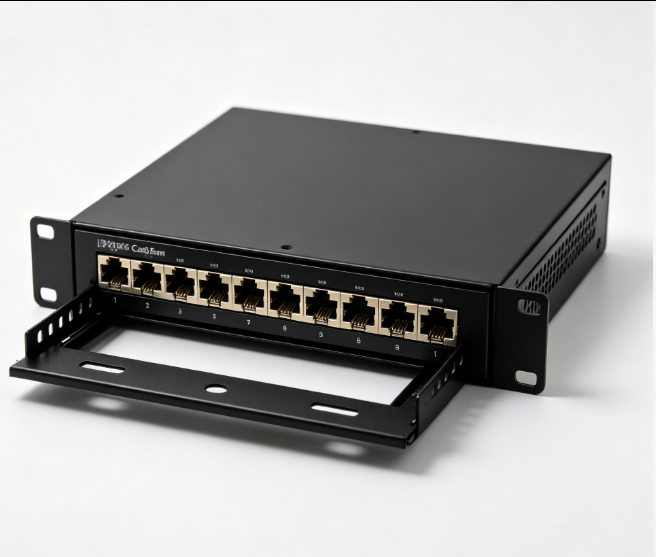
12 Port Cat6 Patch Panel Small Cabinet
Sep 12, 2026929
-
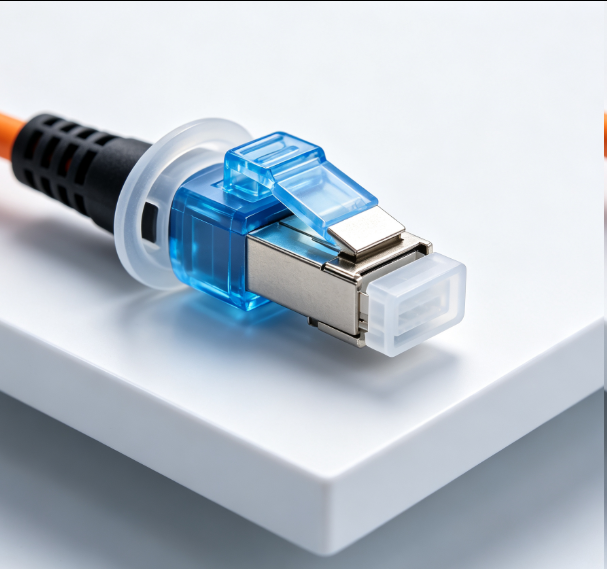
Dust Cap Equipped Fiber Patch Cable Protective
Sep 03, 2026929
-
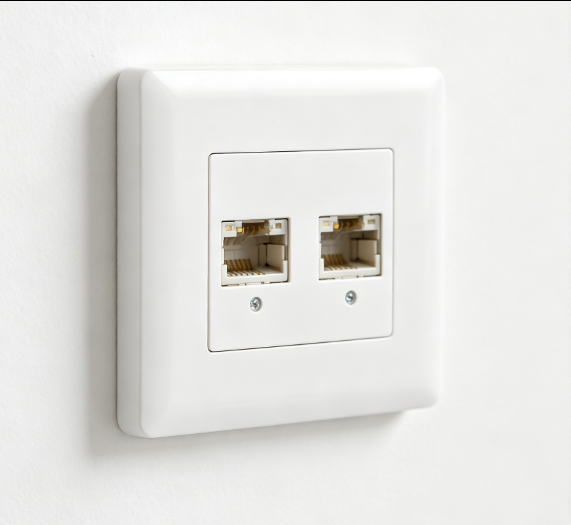
EU Standard Network Faceplate
Sep 11, 2026927